
1. Overview
This article explains the version number convention and where to find your version number.
2. Version numbers
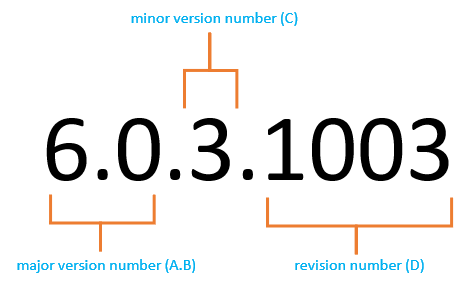
All versions of Simba Custom Analytics or Dundas BI are specified with four numbers separated by periods, referred to in this article as A, B, C and D. This is illustrated in the following figure:
2.1. Major versions
A major release has new A or B numbers in its version number, and generally contains a wide range of new features in addition to all defect fixes addressed since the previous major release.
Examples: version 11.0, version 23.2
2.2. Minor versions
A minor release has the same A and B numbers but a new C number in its version. If a minor version is released, it generally includes all defect fixes since the previous major or minor release, and potentially a small number of new features.
Examples: version 11.0.1, version 23.2.1
2.3. Revision versions
A revision may be released with a new D number in its version. A revision version is a replacement version for a major or minor release that generally incorporates a small number of high priority defect fixes.
Example: version 11.0.0.1006, version 23.2.0.1001
3. Deployment application version
If you want to see the version numbers of the Deployment application or wizard and the application instances it creates, launch it on your server computer. See the list of installed folders for help to find its location.
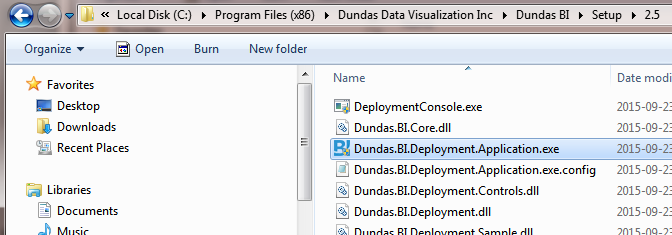
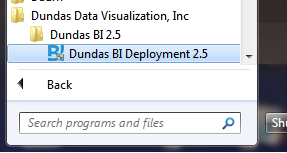
You can also launch the Deployment application from your Start menu if you installed directly on Windows.
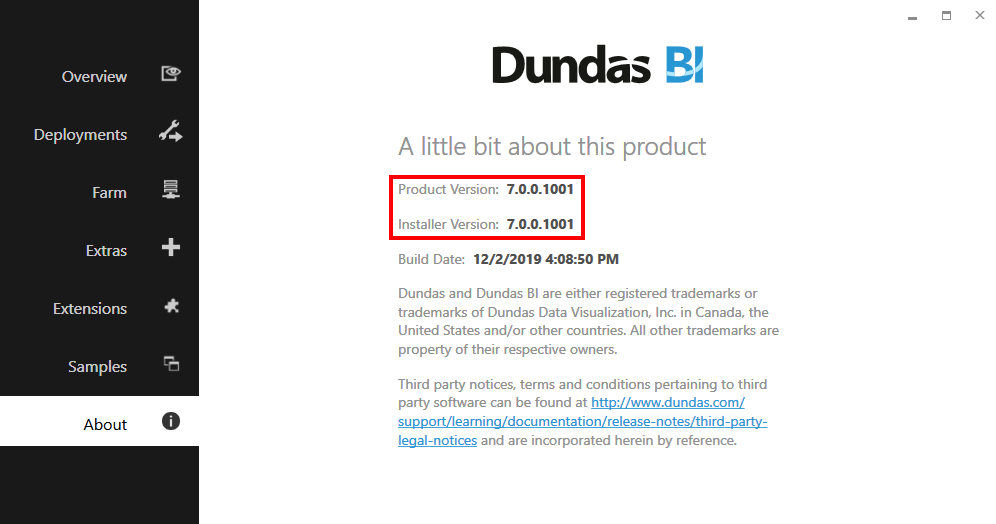
The version number is indicated in the top-right corner of the Deployment Console, or for Custom Analytics or Dundas BI on Windows click About to see the version information.
You can also add the --info argument for Custom Analytics or Dundas BI on Linux (add the --Version argument for Logi Symphony on Windows before version 26.2).
4. Instance version
If you are logged into the application in the browser as an administrator, you can go to your Profile in the main menu along the left, scroll down, and click More about this product to see detailed version information for that instance.
You can also access this same about screen by clicking About in the left sidebar of the administration area.