
Use a dashboard in a report
1. Overview
This walkthrough shows you how to use an existing view such as a dashboard in your report, scorecard, or small multiple.
Reports, scorecards, and small multiples are able to repeat the same view multiple times, each for a different parameter value. You might also use a report to format multiple dashboards into pages that can be exported to PDF.
2. Example dashboard
In this example, we will use My First Dashboard from the Getting Started project. Switch to it using the main menu.
If you do not have the Getting Started project, an administrator can add it to your instance.
3. Repeating a dashboard
Click Views in the main menu, select Report along the top, and then Create to create a new report. The steps are similar for scorecards and small multiples.
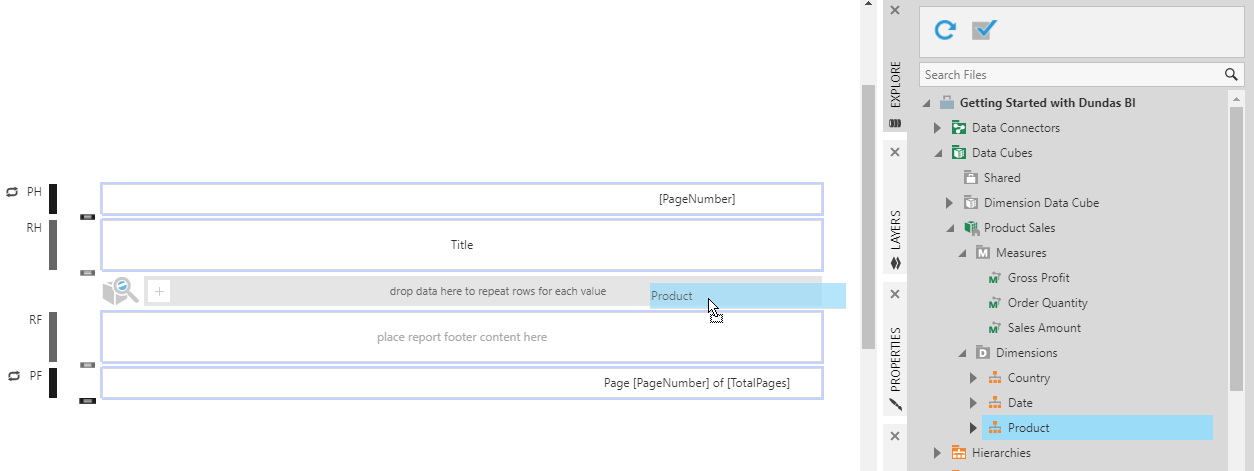
In the Explore window, locate the Product Sales data cube and drag Product onto the grouping drop area (drop data here...).
This automatically creates a data label and header for the grouping hierarchy, which are optional and you can delete them if preferred.
Locate My first dashboard and drag it onto the Group Body region. Resize it as needed to fit the dashboard.
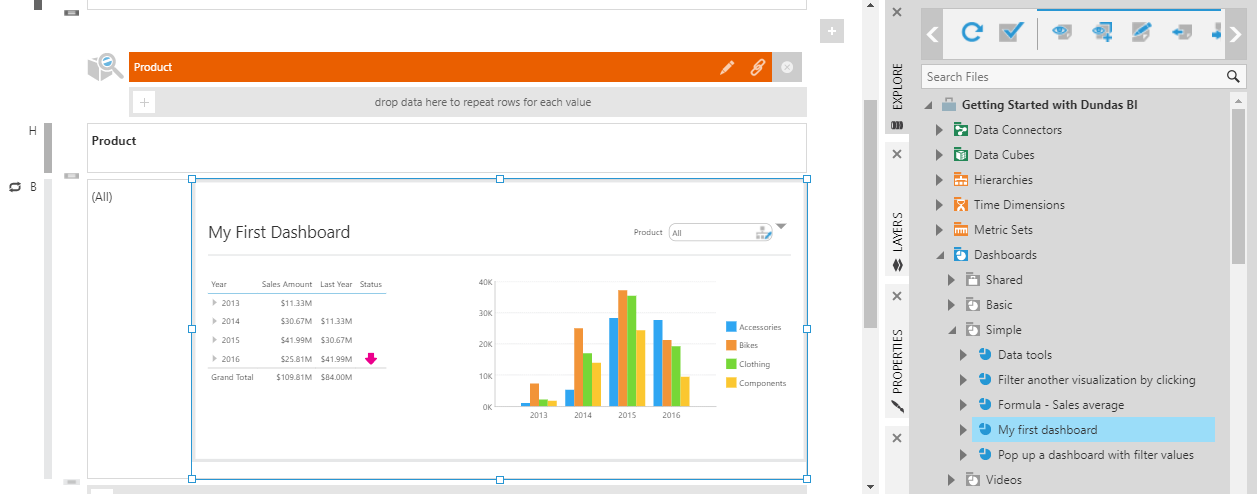
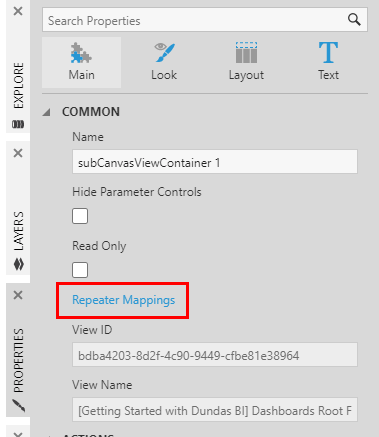
With the dashboard selected, open the Properties window.
Click Repeater Mappings.
In the Set Up Parameter Mappings dialog, click Add new mapping.
Select Product (Filter Value) under Repeater Group and Product under My First Dashboard.
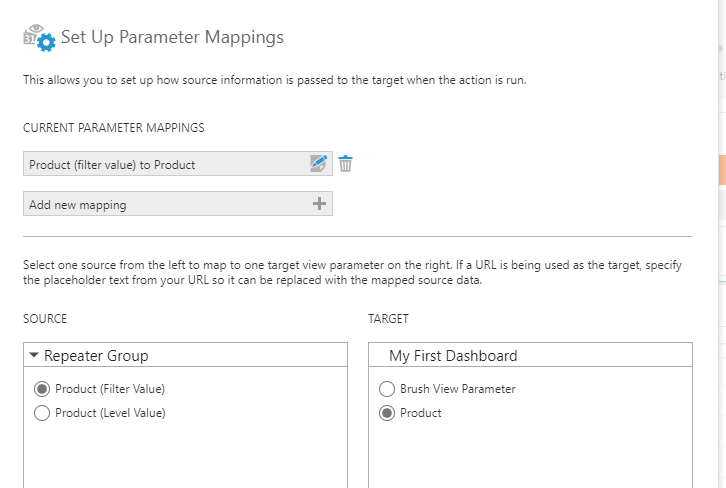
Click to Save at the bottom of the dialog, and switch to View mode.
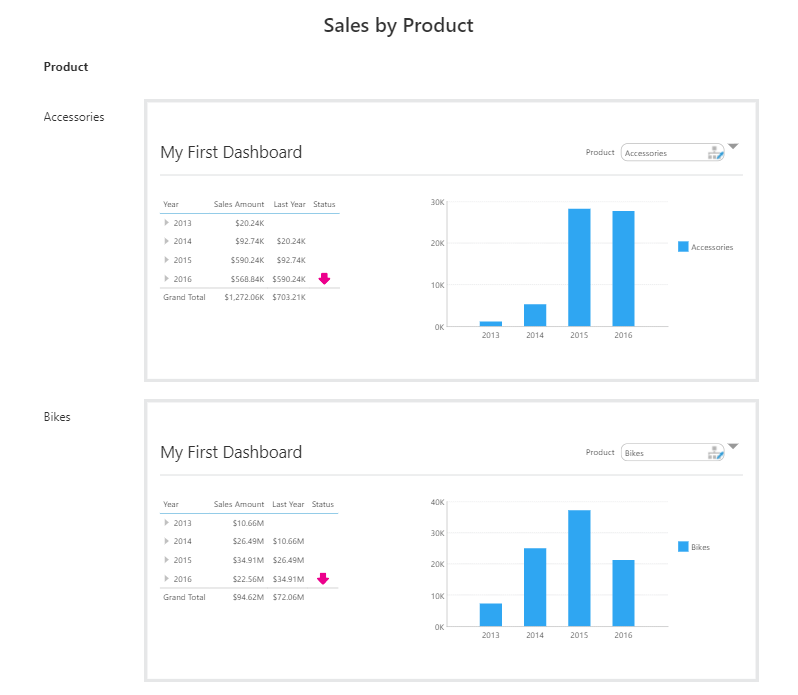
With the repeater mappings set up, each copy of the dashboard is filtered to a single product category in our example: each bar chart has only a single series, and the filter above it shows the corresponding product category.
When the view contains filters that you don't want displayed while embedded inside of another view, you can go to the Properties window with the view selected in edit mode, and enable the Hide Parameter Controls option.
4. Exporting dashboards
Rather than repeat a dashboard or view multiple times, you can also use a report to format dashboards or other views into pages to be exported into a single PDF, which can then be shared or saved, delivered by e-mail, or printed.
You don't necessarily need to drag data to repeat any content in your report, and can simply drag views such as dashboards to the Report Footer region, for example.
To add additional template regions, select a region such as the Report Footer. If the region already contains content, you can click the area labeled RF or similar on the left, or select content inside the region and click Select Template Cell.
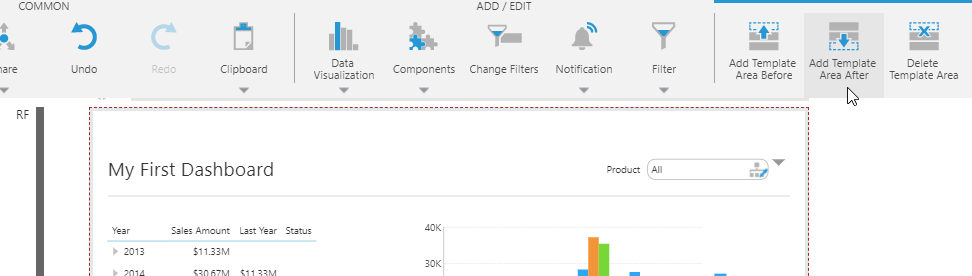
Click Add Template Area After or Add Template Area Before in the toolbar, then drag another view into the new region.